How to remove glare or reflections from a photo with AI
Crop around the glare, ask an AI editor to reconstruct the obscured detail, then merge the cleaned area into the original photo without resizing the whole image.
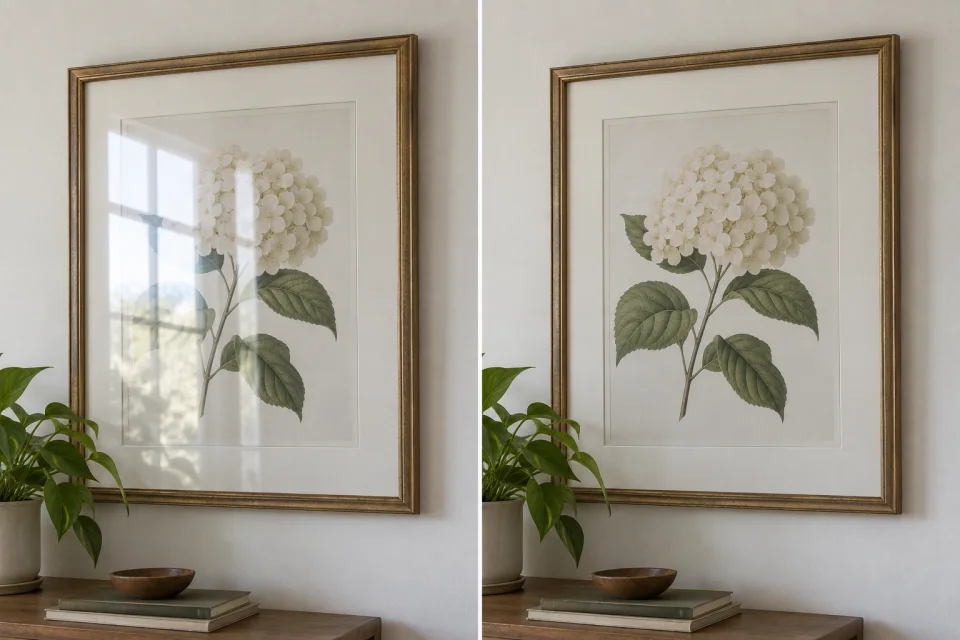 Glare
Reflection removed
Glare
Reflection removed
Know what AI can recover
AI can convincingly rebuild simple textures and predictable details beneath a reflection. It cannot recover information that was never captured, so inspect important text, faces and artwork carefully rather than assuming the generated detail is exact.
1. Crop around the reflected area
Duplicate the photo and crop around the complete patch of glare. Include nearby clear detail from the same surface and a margin of unchanged image on every side. For several separate reflections, repair them one at a time.
2. Describe what lies behind the glare
Tell the editor which reflection to remove and what should continue beneath it. Ask it to preserve the object’s lines, texture, colours and perspective.
Remove the window glare from the [glass, artwork, product or surface]. Reconstruct the obscured area from the surrounding detail.

Keep the colours, texture, lines, perspective, framing and outer edges unchanged.3. Merge the cleaned area back
Download the edited crop and check it against the original. Upload the original and crop to Cropmerger to place the repair at full resolution while leaving the rest of the photograph untouched.
Open CropmergerWhen to keep a reflection
Small reflections help glass and polished surfaces look real. If removing all glare makes the object look flat, ask the editor to reduce the strongest reflection instead of erasing every highlight.