How to edit one part of an image with AI
Isolate the area you want to change, describe one clear edit, then place the edited area back into the original image. Everything outside the edit can stay exactly as it was.
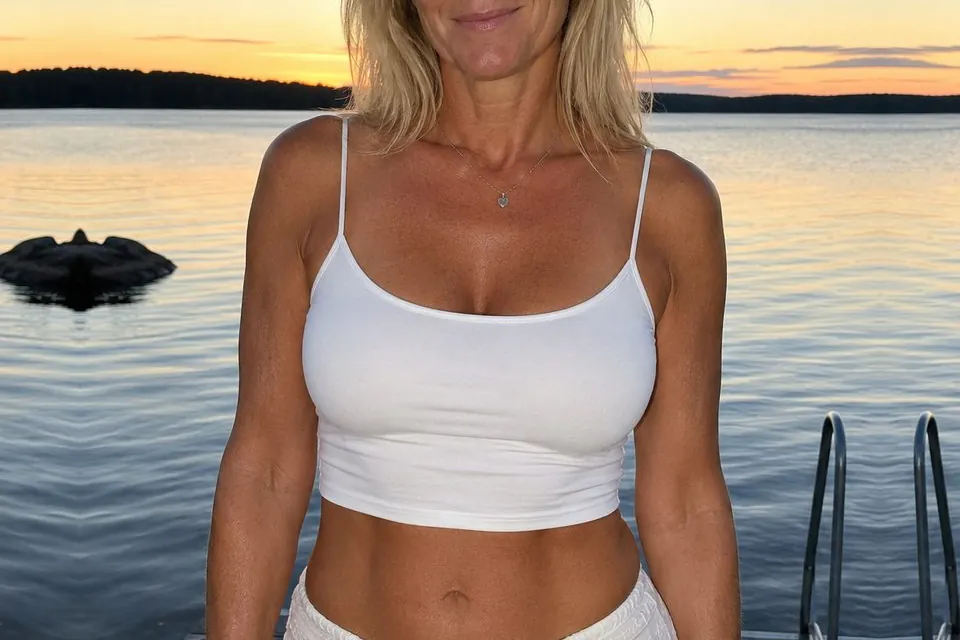
Two ways to edit a specific area
Many AI editors offer inpainting or generative fill. You brush over part of an image and ask the editor to replace it. This is convenient when the editor preserves the rest of the file at its original size.
You can also crop the area out, edit the crop in any AI image editor, then merge it back. This keeps the original image away from the AI editor and gives the changed area more of the editor’s available resolution.
1. Crop around the part you want to edit
Duplicate the image so the original stays untouched. Crop the copy around the desired change and include some familiar, unchanged detail on every side. Do not crop tightly against the object.
2. Ask the AI to change only that part
Upload the crop and describe the result you want. Name the subject, the change and the details that must stay the same. A short, specific instruction is easier to judge and refine than several changes at once.
Change only [describe the part] to [describe the result].

Keep everything else unchanged, including the lighting, perspective, colours and background. Keep the framing, aspect ratio and outer edges identical.3. Merge the edited area back
Download the edited crop at the best quality available. Open Cropmerger and upload the untouched original with the edited crop. Cropmerger finds where the crop belongs, matches it to the colour around it and leaves every pixel outside the edit untouched.
Open Cropmerger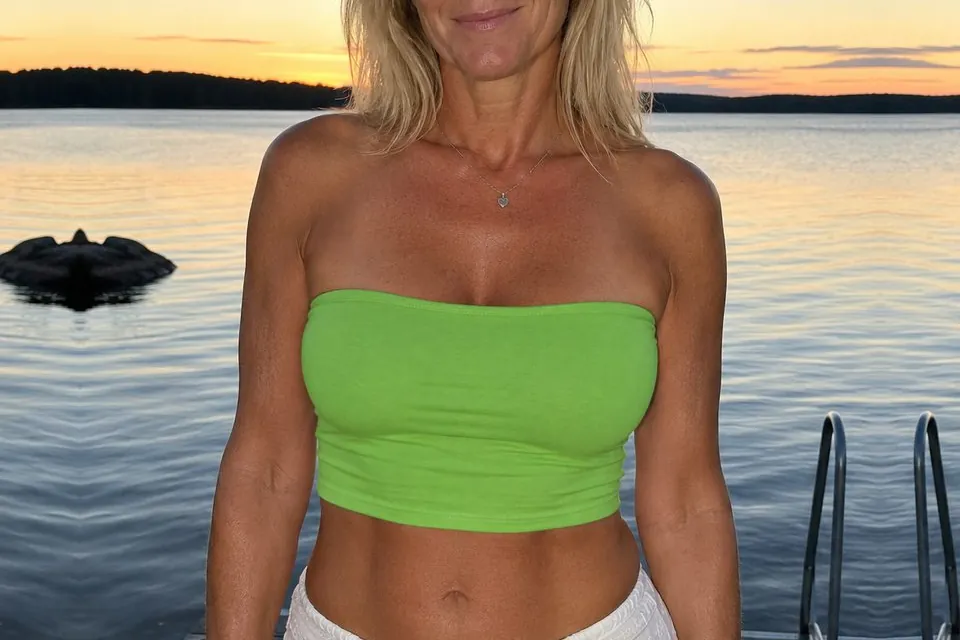
What can you change?
- Replace or remove an object.
- Change clothing, colour or material.
- Repair a small damaged or distracting area.
- Add something to an empty part of the scene.
If the edited crop cannot be placed
Try again with a wider crop and more unchanged detail around the requested change. Avoid editing the crop’s outer edges, because Cropmerger uses those familiar details to locate and blend the result.