How to remove an object from a photo with AI
Crop around the unwanted object, ask an AI editor to rebuild the background behind it, then merge that repaired crop into the untouched original photo.
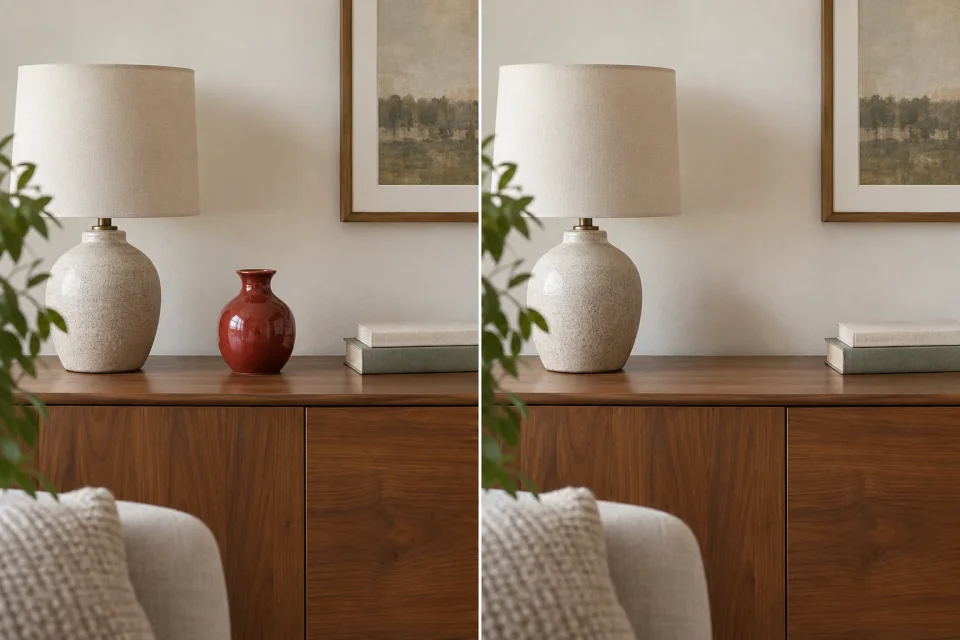 Before
Object removed
Before
Object removed
1. Crop around the object
Duplicate the original photo and crop the copy around the object you want to remove. Include its full shadow or reflection and leave a generous band of unchanged background on every side.
A wider crop gives the AI enough context to reconstruct repeating textures, lines and surfaces behind the object. Avoid cutting through nearby objects that should stay.
2. Ask the AI to rebuild the background
Upload the crop to an AI image editor. Describe what must disappear and what should fill its place. Naming the surface or background helps the editor produce a plausible repair.
Remove the [object] and its shadow. Fill the empty area with the surrounding [wall, floor, sky or other background].

Keep every other object, the lighting, perspective, framing and outer edges unchanged.3. Merge the repair into the original
Download the edited crop at the best available quality. Open Cropmerger and upload the untouched original with the edited crop. Cropmerger locates the crop, blends its colour with the original and preserves everything outside the repair.
Open CropmergerTips for a clean removal
- Remove one object at a time so each repair is easier to judge.
- Include complete shadows and reflections in the crop.
- For brick, tiles or other patterns, leave several repetitions visible around the object.
- If the fill looks soft, try a smaller crop with enough unchanged detail to place it accurately.