How to edit product photos with AI without changing the label
Keep the product and its label outside the AI edit whenever possible. Edit only the dust, wrinkle, glare or background area, then merge that cleaned crop into the original product photo.
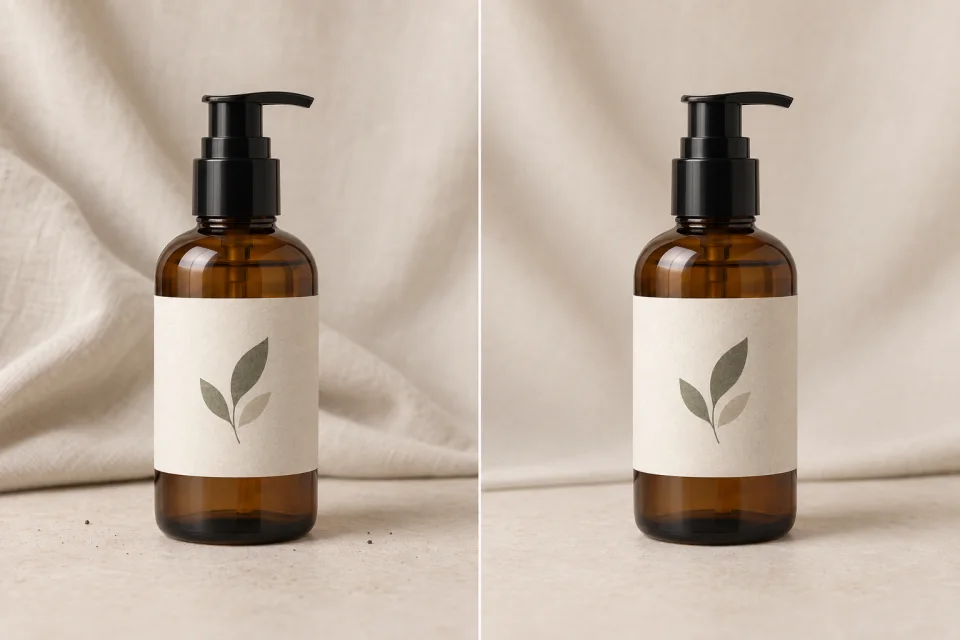 Before
Label preserved
Before
Label preserved
Why AI changes labels
Image generators often redraw text, logos and packaging details when they process a whole product photo. Even a small spelling or spacing change can make the result unusable. The safest approach is to keep the real product pixels and edit only the area around them.
1. Crop around the distraction
Duplicate the original and crop around the dust, crease, reflection or background area that needs attention. Keep the label outside the crop. If the edit touches the product edge, include a narrow strip of the unchanged product so the boundary can blend cleanly.
2. Ask for one precise clean-up
Upload the crop and describe the repair. Tell the editor not to add props, alter colours or reshape the product.
Remove the [dust, crease, glare or distraction] and continue the surrounding background naturally.

Do not change the product, packaging, label, logo, colours, shadows, perspective, framing or outer edges.3. Merge the clean-up into the original
Download the edited crop, then upload it with the untouched original to Cropmerger. The cleaned area is blended into place while the original label, logo, product shape and resolution remain intact.
Open CropmergerProduct-photo checks
- Compare the label, cap, edges and reflections with the original at full size.
- Keep legally required text and claims entirely outside the generated area.
- Use the original product photo as the source of truth for colour.
- Make several small repairs instead of asking for a complete scene redesign.