How to merge an AI edit back into your photo
Crop the part you want to change, edit only that crop with AI, then merge it back into the original. The edit lands in the right place at full resolution, and every other pixel stays as it was.
Why not edit the whole photo?
AI image editors send back images at their own maximum size, which is often far smaller than a high-resolution photo. Give one a whole 4K photo and you get a smaller copy back, and details you never asked to change can shift too, such as faces, text, textures and colour.
Editing a crop avoids both. The editor spends all of its resolution on the small part that changes, so the edit comes back sharp. Cropmerger then merges it into your original, which keeps its full resolution, and the rest of your photo never passes through the editor at all.
1. Crop a copy around the change
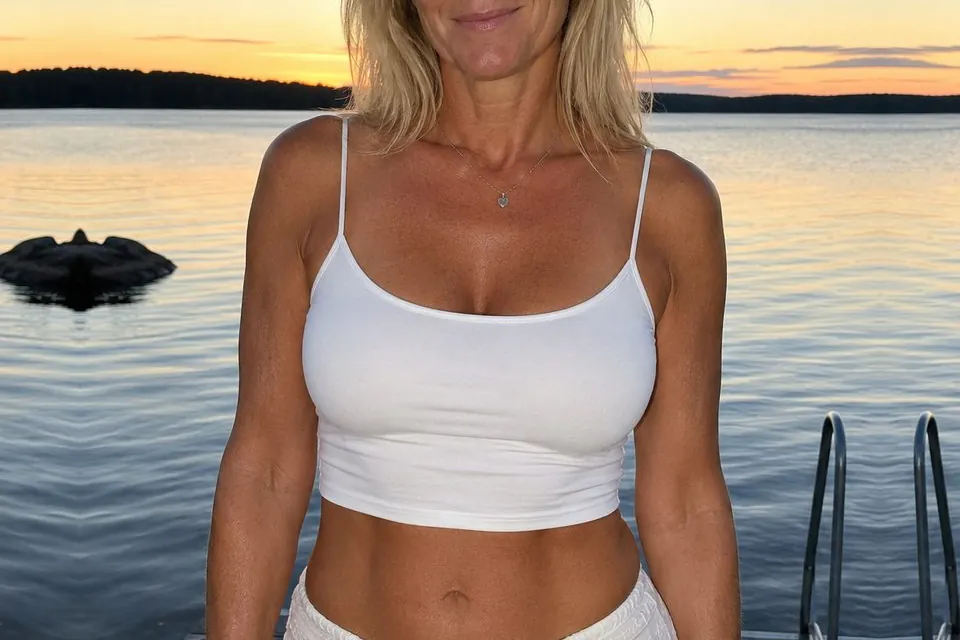
Duplicate your photo so the original stays untouched. Crop the copy to the area you want to change, and leave some unchanged image on every side. Cropmerger uses that surrounding detail to find where the edit belongs. The smaller the crop, the more detail the editor can give your edit.
2. Edit the crop with AI
Upload the crop to any AI image editor, such as ChatGPT or Gemini, and describe one clear change. Ask it to keep everything else the same.
Please make this change to the attached image: [describe the edit].

Keep everything else unchanged, including the composition, lighting, colour, contrast and image quality. Keep the framing, aspect ratio and outer edges identical.Download the result at the best quality the editor offers. It does not need to match the size of the crop you uploaded.
3. Merge it back into the original
Open Cropmerger and upload two images: your untouched original and the edited crop. Cropmerger puts the edit back exactly where it belongs, matched to the colour around it.
Open Cropmerger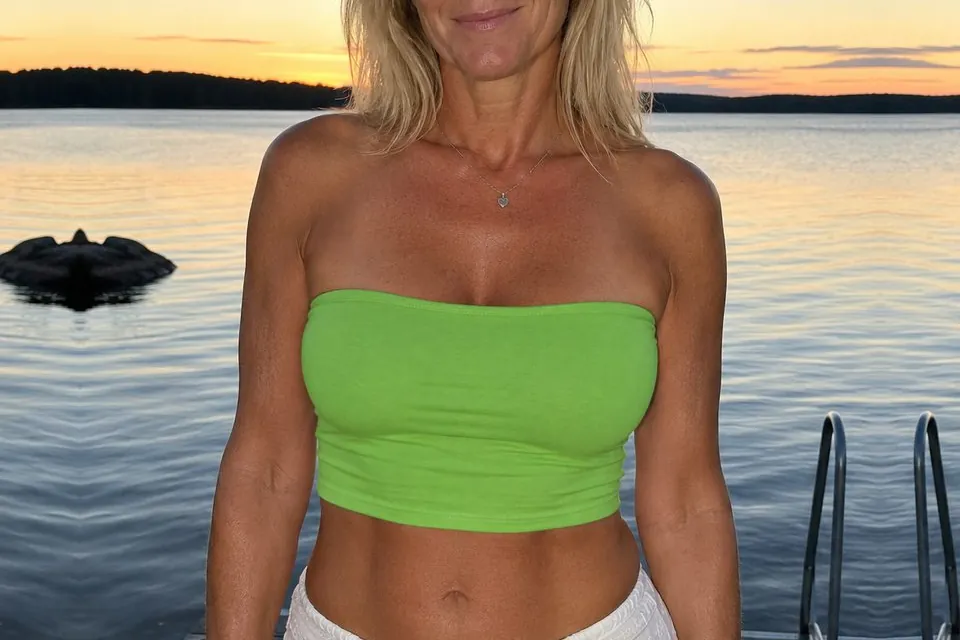
4. Compare and download
Compare the merge with your original, adjust it if you need to, then download the full-resolution result. Everything outside your edit is your original file, pixel for pixel.
If the edit cannot be placed
Repeat the edit with a wider crop that includes more unchanged image around the change. Avoid changing important details right at the edge of the crop.