How to keep ChatGPT from changing your face
Do not send ChatGPT the face if the edit does not need it. Crop around the clothing, object or background you want to change, then merge the result into the original photograph.
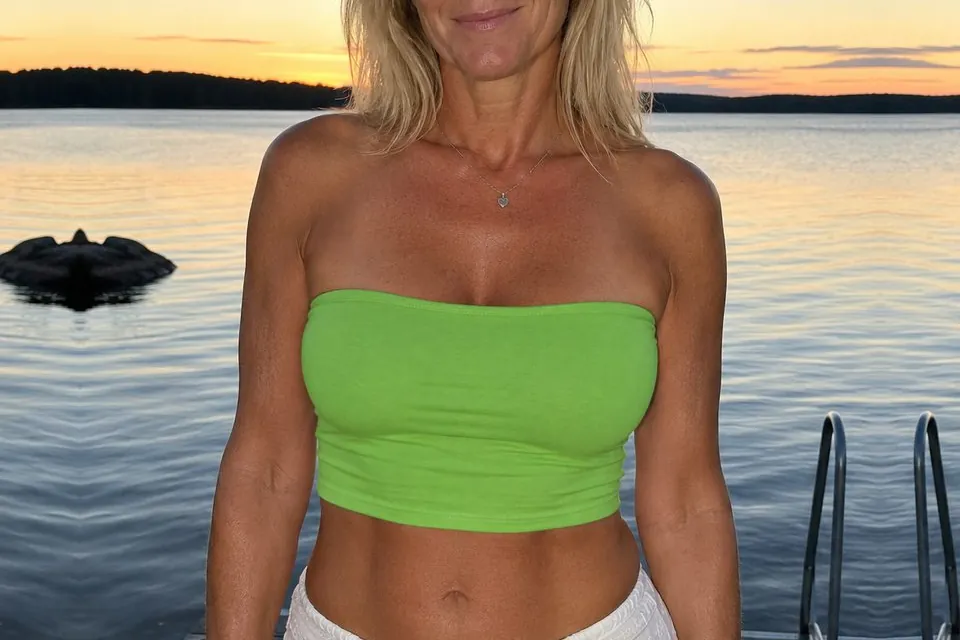
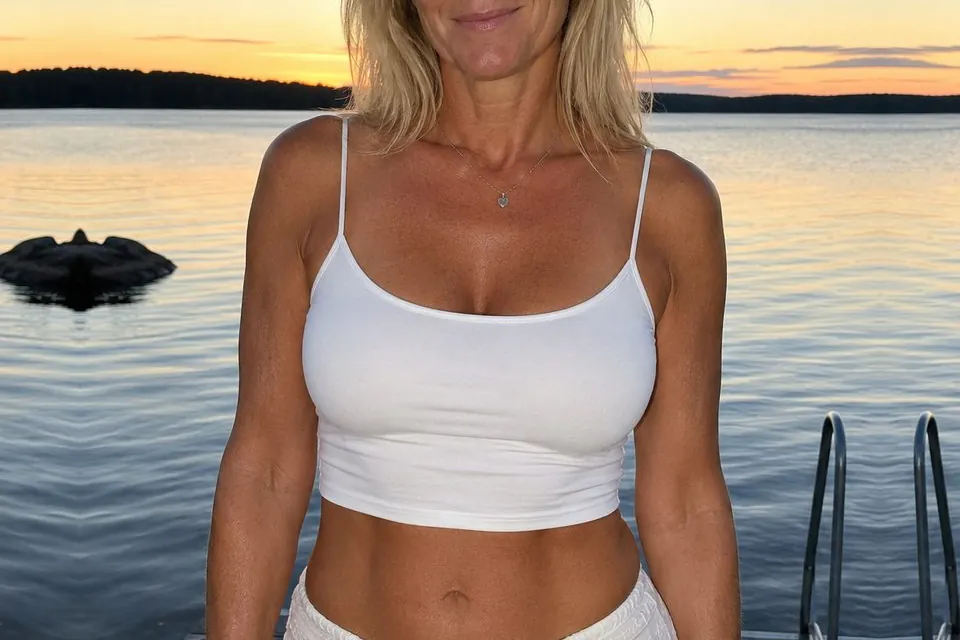
Why ChatGPT changes faces
When an AI image editor redraws a whole photograph, it may recreate the face rather than preserve every original detail. A prompt can ask for the same face, but the most reliable protection is to keep the face outside the image being edited.
1. Crop the photo away from the face
Duplicate the photo and crop the copy around the requested change. For a clothing edit, keep the eyes, nose and mouth outside the crop. Include some unchanged body, background or fabric around the edit so the result can be placed accurately later.
2. Edit the crop in ChatGPT
Upload only the crop and ask for one clear change. Tell ChatGPT to keep the crop’s framing and outer edges identical.
Change only [describe the clothing, object or background] to [describe the result].

Keep the pose, lighting, perspective, framing, aspect ratio and outer edges identical. Do not add or remove anything else.3. Put the edit back without touching the face
Download ChatGPT’s edited crop, then upload it to Cropmerger with the untouched original. Only the crop is merged back. Because the face was never part of the edited image, the original face remains in the finished photograph.
Open CropmergerWhen the face must be inside the crop
For hair, glasses or another edit close to the face, use an editor that lets you select or mask only the area to change. Check the face carefully before merging. If it changed, retry with a smaller selection and a stricter prompt.