How to change hair colour in a photo with AI
Select only the hair, describe a natural new colour, then merge the edited area back into the original photograph. A precise selection helps the face, hairstyle and background stay unchanged.
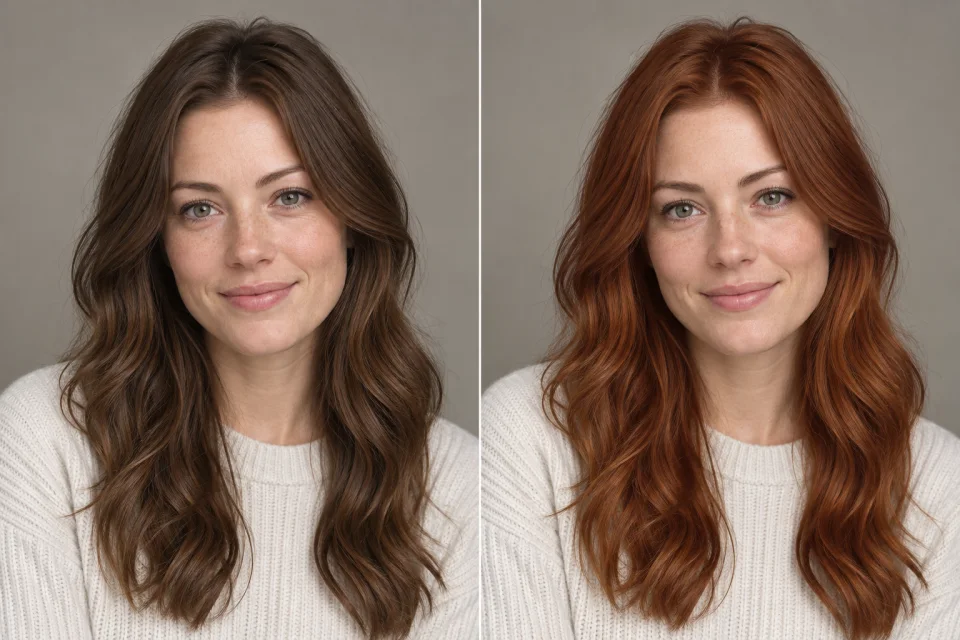 Brown hair
Copper hair
Brown hair
Copper hair
1. Select the hair, not the whole portrait
Use an AI editor with a brush or mask and select the hair from the roots to the ends. Include loose strands, but avoid the eyes, nose, mouth and skin wherever possible. If you need to upload a crop, include the full hairstyle and a little unchanged background.
2. Describe a believable colour
Ask for a specific colour and undertone, such as cool dark brown, warm copper or ash blonde. Tell the editor to preserve the hairstyle, strand detail, highlights, shadows and facial identity.
Change only the hair colour to [new colour and undertone].

Keep the face, skin, expression, hairstyle, hair length, strand detail, lighting, clothes and background unchanged.3. Check the face before merging
Compare the edited result with the original at the eyes, mouth, hairline and skin edges. If any facial detail changed, retry with a smaller mask. When the crop looks right, merge it into the untouched original with Cropmerger.
Open CropmergerTips for realistic hair colour
- Keep some natural variation instead of asking for one flat colour.
- Very light hair may need a second attempt to keep shadows and roots believable.
- Include flyaway hairs in the mask so their original colour does not form a halo.