How to edit 4K images with ChatGPT
Crop the part you want to change, edit only that crop in ChatGPT, then merge it back into your untouched original. The edited area gets ChatGPT’s available detail while the rest of your 4K image stays exactly as it was.
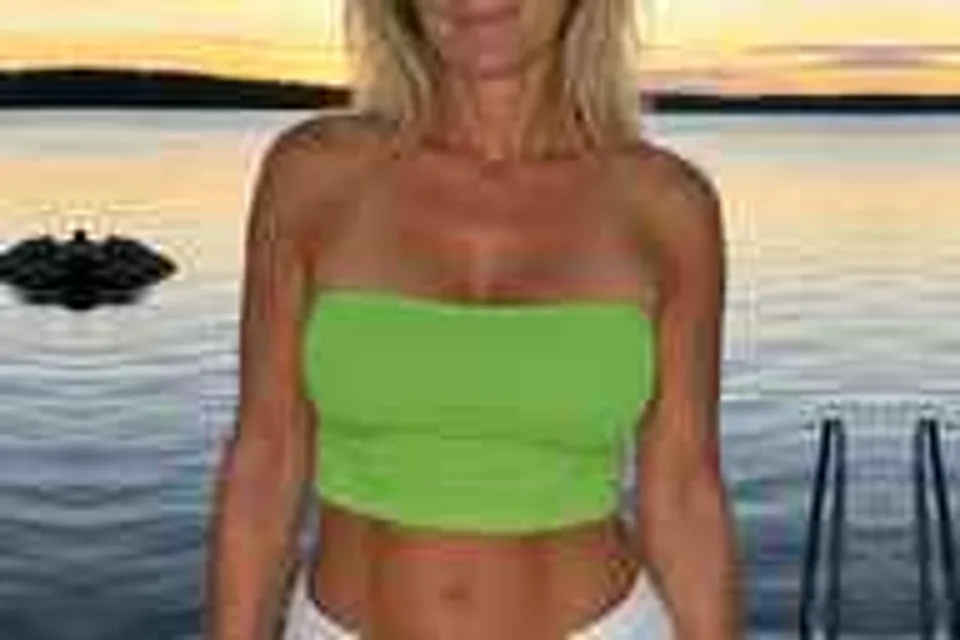
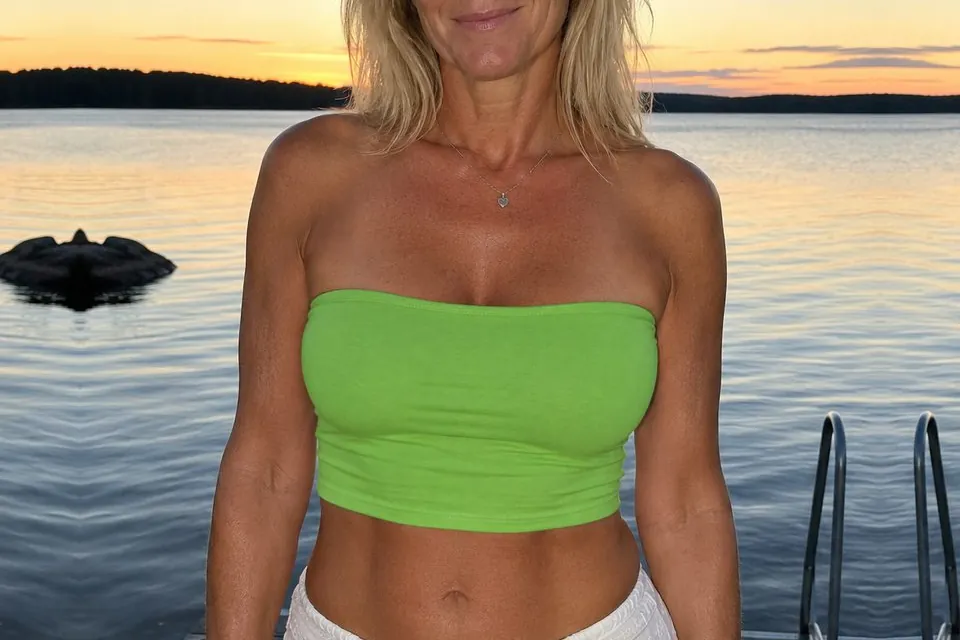 Crop edit
Whole-image edit
Crop edit
Whole-image edit
Why a whole-image ChatGPT edit can lose 4K detail
When ChatGPT edits an uploaded image, it generates a new result from the image and your instructions. That result can have different dimensions from the original, and details you did not ask to change can be redrawn.
Sending only a crop avoids both problems. ChatGPT works on the small area that needs to change, while the full-resolution original remains untouched.
1. Crop a copy of your 4K image
Duplicate the original image, then crop the copy around the part you want to edit. Leave some unchanged detail on every side of the change. Cropmerger uses that surrounding detail to find where the edited crop belongs.
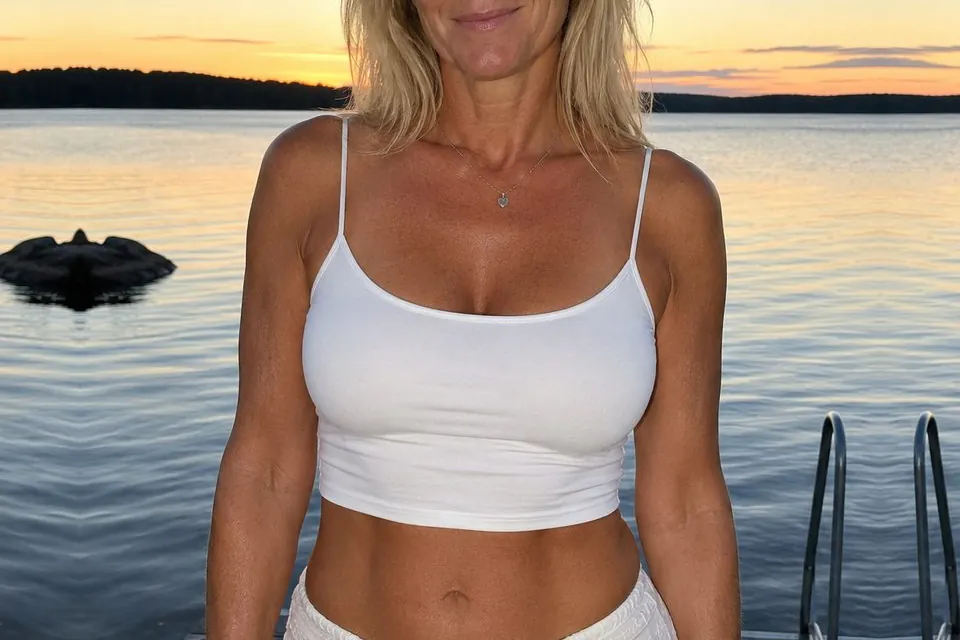
2. Upload the crop to ChatGPT
Attach the cropped image to ChatGPT and describe one clear change. Say what should change and what must remain the same.
Change only [describe the part] to [describe the result].

Keep everything else unchanged, including the composition, lighting, colour, contrast and image quality. Keep the framing, aspect ratio and outer edges identical.3. Download the best result
Compare the generated result with the crop you uploaded. Check that the outer edges and unchanged details still look familiar, then download the image rather than taking a screenshot. It does not need to have the same dimensions as your crop.
4. Merge the ChatGPT edit back at full resolution
Open Cropmerger and upload your untouched 4K original with the crop edited in ChatGPT. Cropmerger finds where the crop belongs, matches its colour to the surrounding image and leaves everything outside the edit untouched.
Open CropmergerCan ChatGPT upscale an image to true 4K?
Asking ChatGPT to make an image 4K can produce a sharper-looking new version, but it is not the same as preserving the exact pixels of an existing 4K photograph. Small features, faces, text and textures can change during generation.
Use an upscaler when you want to enlarge a newly generated image. Use the crop-and-merge method when you already have a detailed 4K image and want to change only one part of it.
Tips for sharper ChatGPT edits
- Make the crop as small as the edit allows, while keeping unchanged detail around it.
- Ask for one change at a time.
- Keep faces, text and intricate details outside the crop when they must remain identical.
- Start again with a wider crop if Cropmerger cannot place the result.